
|
Report Example
|
 
|
|
|
Report Example
|
|
#The text in the yellow column is an example of how you
should enter information.
To view
reports, select Reports on the main navigation bar.
You will see categories of the
reports that are available and you should select the specific category that you would
like to view.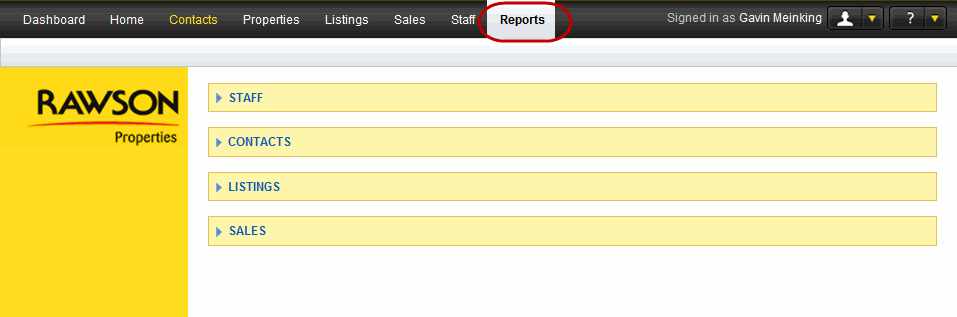

|
|---|
|
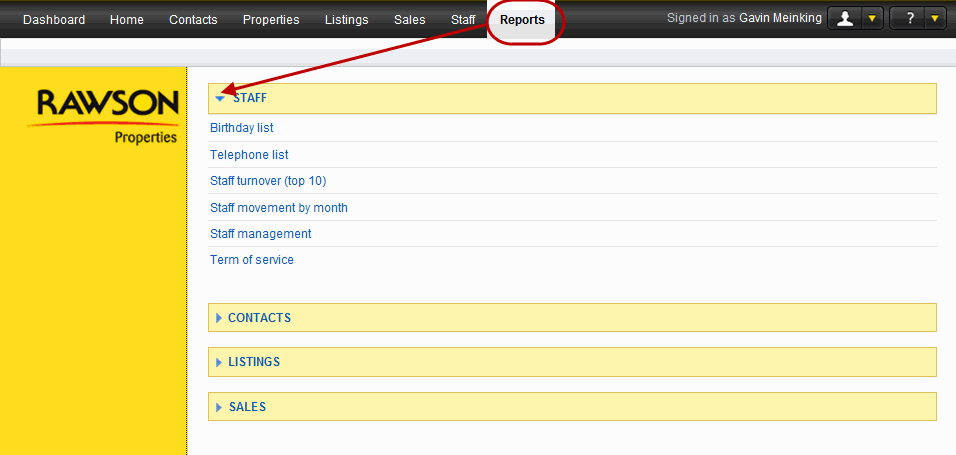
To be able to view the list of reports that are available under each category click on the small arrow that is pointing towards a category title. It will open the list and that same arrow will then point downward. To close the list, click on the same arrow. |
|
|---|
|
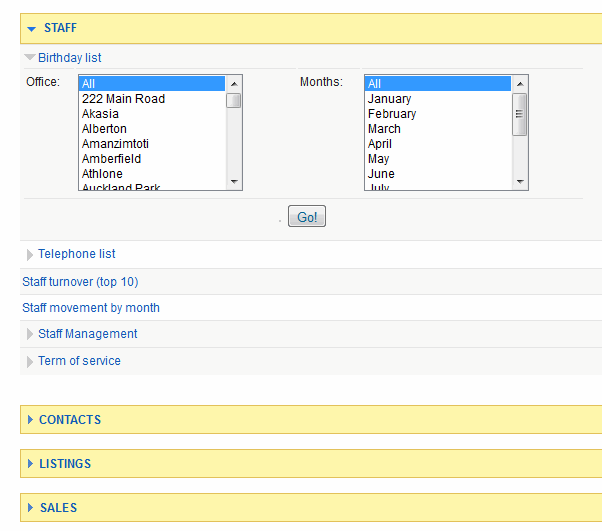
Once you have selected the report that you want to view, you will be given options that will help specify the information that you are about to view. Once you have completed the required options, select okay to view the report. |
|
|---|
|
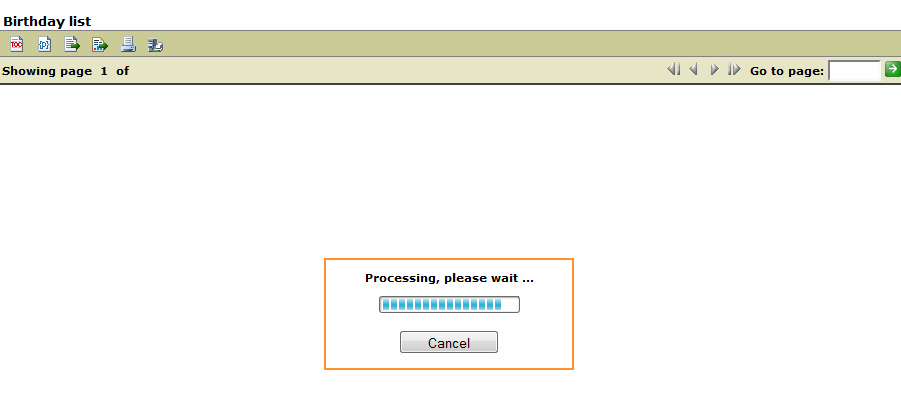
Users will see this message while the report that they have request is being generated.The name of the report will be displayed as a tab or the heading for the new window that has been opens as well as at the top as of the page. A pop up window will than appear and you will be required to select the parameters for the report that you want generated. |
|
|---|
|
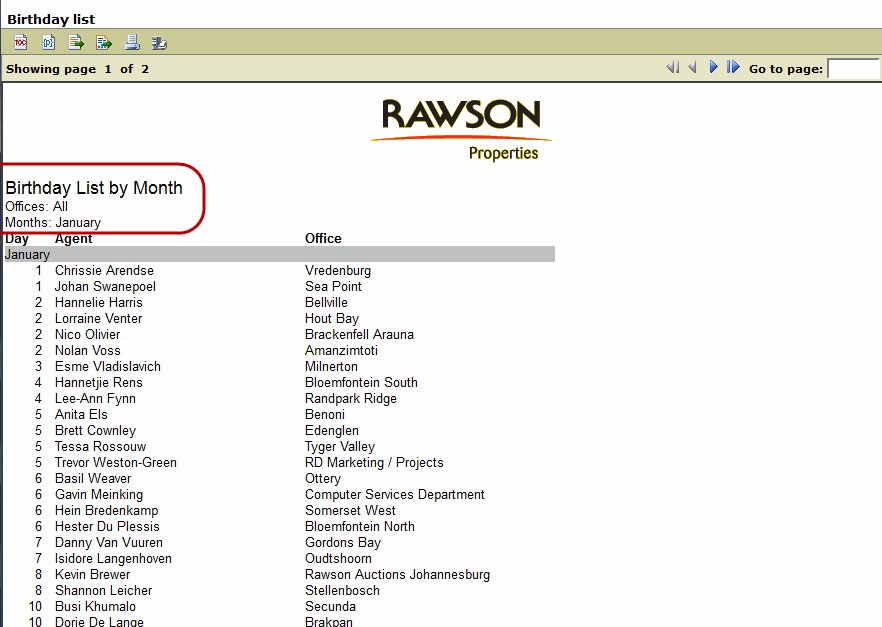
The above screen shot is a list of birthdays for the month of January from all offices and this information is represented at the top of the report. The report appears underneath that information and you can scroll down to view all the information. |